

Godot
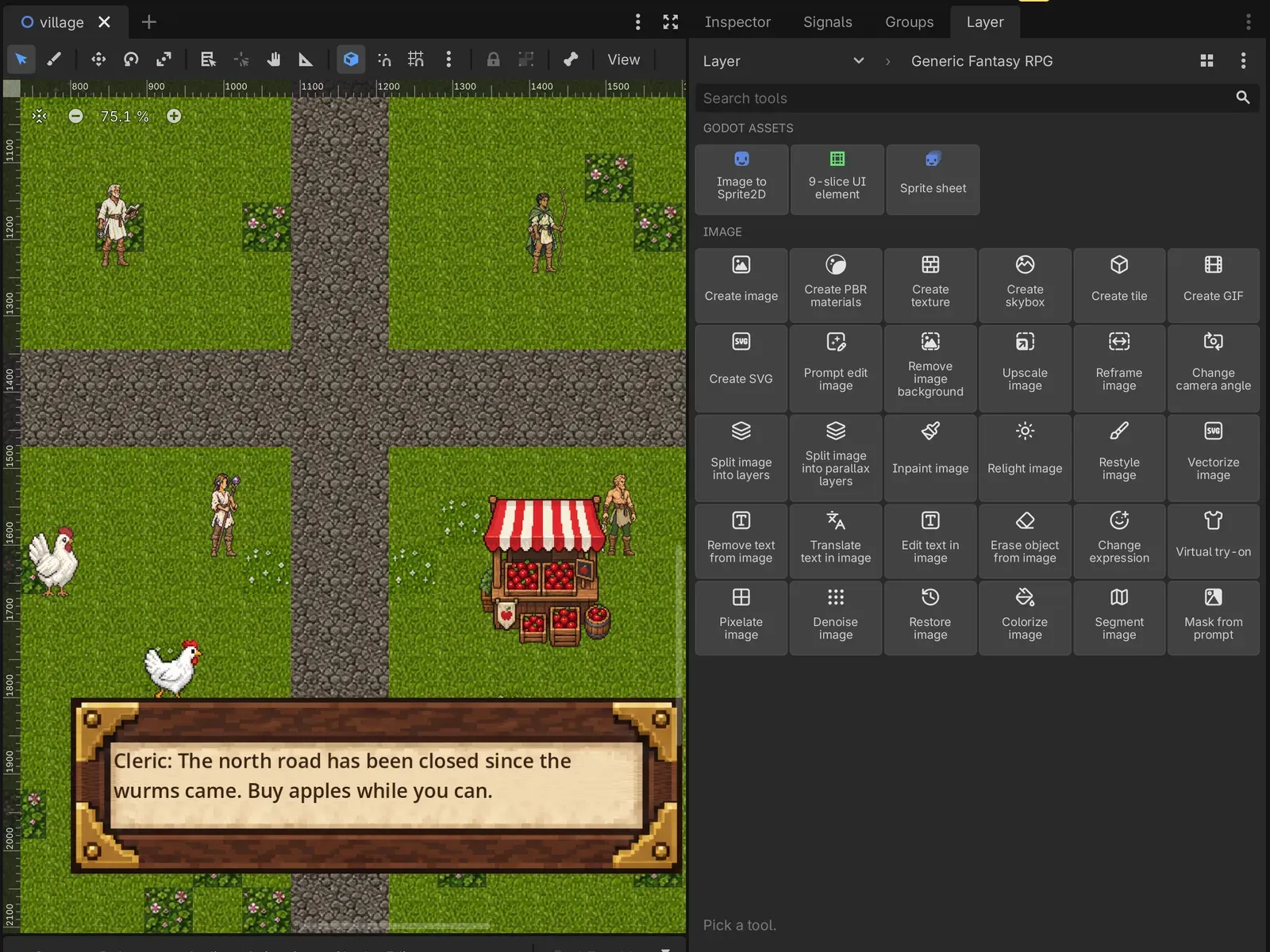
The Layer addon lets you generate game assets inside the Godot editor and place supported results in your scene. It needs Godot 4.5 or later and is pure GDScript, so it runs on macOS, Windows and Linux.
What it does
Section titled “What it does”- Images: generate an image and place it as a
Sprite2Dat the center of the 2D view. - Edits: run image tools such as upscale or remove background on a project image or a node that shows one. The original is never touched.
- Sprite sheets: a sheet becomes a
SpriteFrames, and Place adds anAnimatedSprite2Dplaying it. - 9-slice UI: a button, frame or panel that stretches, placed as a
NinePatchRectwith the insets Layer found. - Game tiles: tiles made in Layer by the agent or the web app become a
TileSet, and Place paints them into aTileMapLayer. - Session files: browse results from Godot, the web app or a teammate. The file type determines what you can download or place.
Every result lands in a Layer session that the project remembers, so a teammate who pulls the project works in the same one, and everything is also in the Layer web app.
Install
Section titled “Install”- Check the Godot integration page for a published build. When a download is available, choose the addon zip.
- Extract it beside
project.godotso the project containsaddons/layer/plugin.cfg. - Open the project in Godot, go to Project → Project Settings → Plugins and turn on Layer AI. The Layer dock opens on the right.
Commit addons/layer with the project and your teammates have the addon too.
To update, turn the plugin off, delete addons/layer, extract the new zip in its place and turn it back on. Extracting over the old folder would keep files the new version no longer has.
Sign in
Section titled “Sign in”Click Sign in in the Layer dock. Your browser opens Layer’s sign-in page with a code filled in: check it matches the code the dock shows, then sign in as you would on layer.ai, enterprise SSO included. On a machine whose browser is elsewhere, open the address the dock shows on any device and enter the code there. Then pick a workspace.
You can also paste a personal access token (pat_...) into the dock and click Use key.
Generate
Section titled “Generate”The dock lists image, 3D, audio and video tools that start from a prompt or a project image. It cannot send a mesh, sound or video as input. Pick a tool, then choose a model allowed by your Layer project’s AI policy. If a model requires an input the dock can’t supply, it can’t run from Godot. The picker remembers your choice per workspace on this machine.
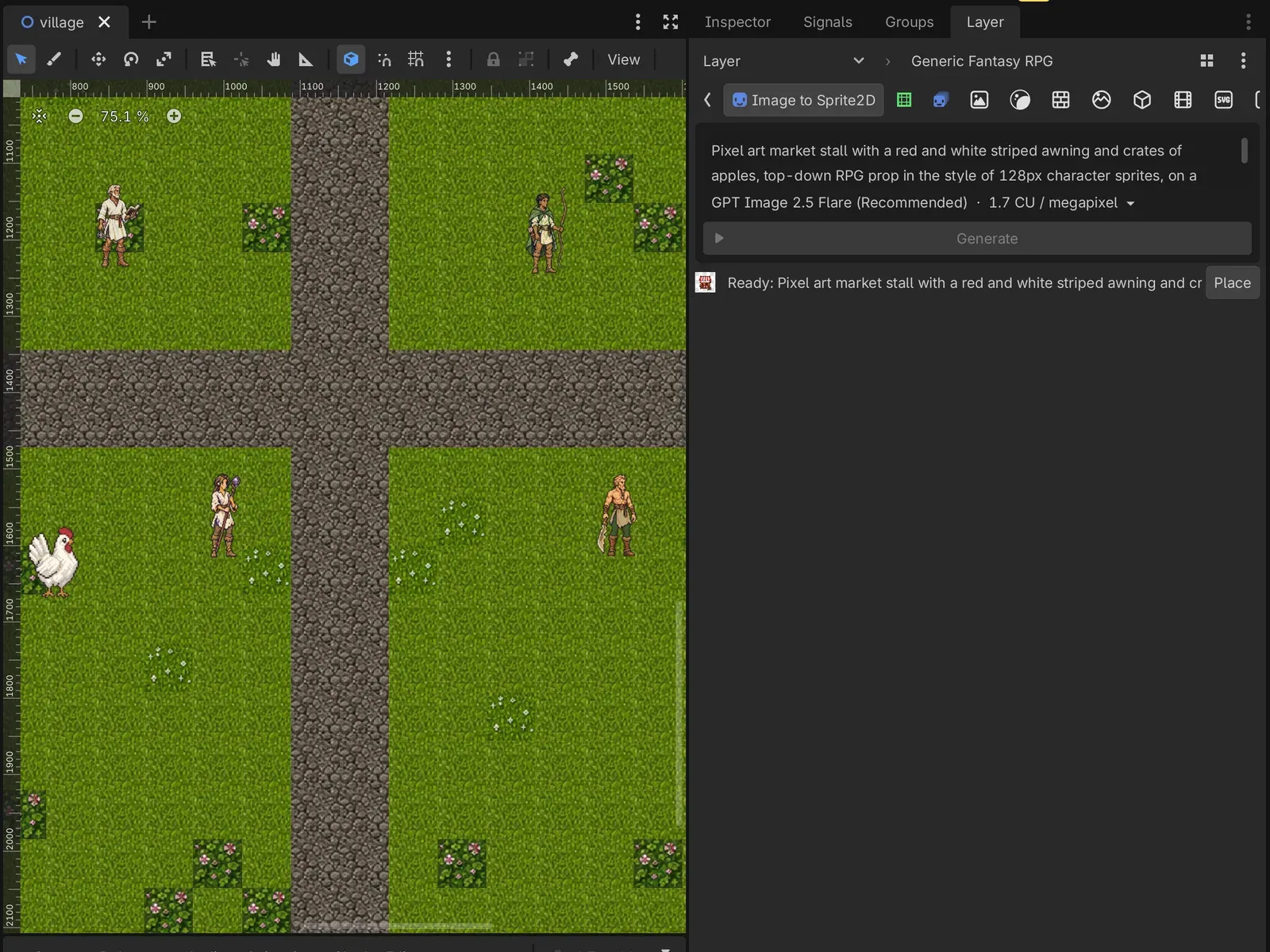
When you start a generation, the dock gets an estimate in Creative Units for each run. If you run once per image, the limit applies to each run, not their total. If any estimate exceeds the limit, none are sent. Once the estimates and balance checks pass, the dock submits without a separate confirmation. Set the limit under Editor Settings → Layer → Max Creative Units Per Run (50 by default).
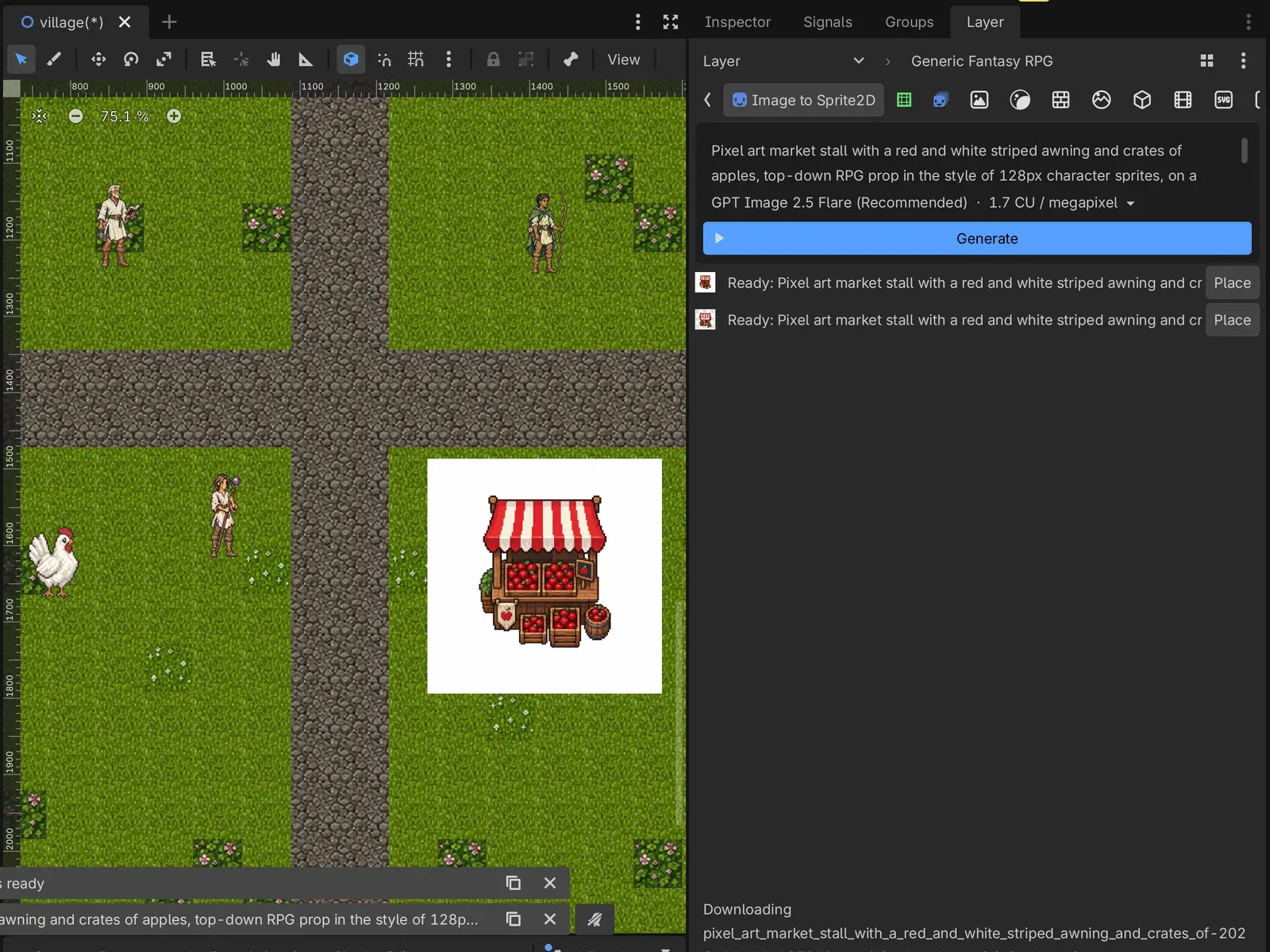
A run shows what it is doing (Sending, Generating on Layer, Ready on Layer, Downloading, Ready), and an editor toast says when it is ready or why it failed.
Image to Sprite2D places its result as a Sprite2D at the center of the 2D view when you click Place. Placing is one undo step.
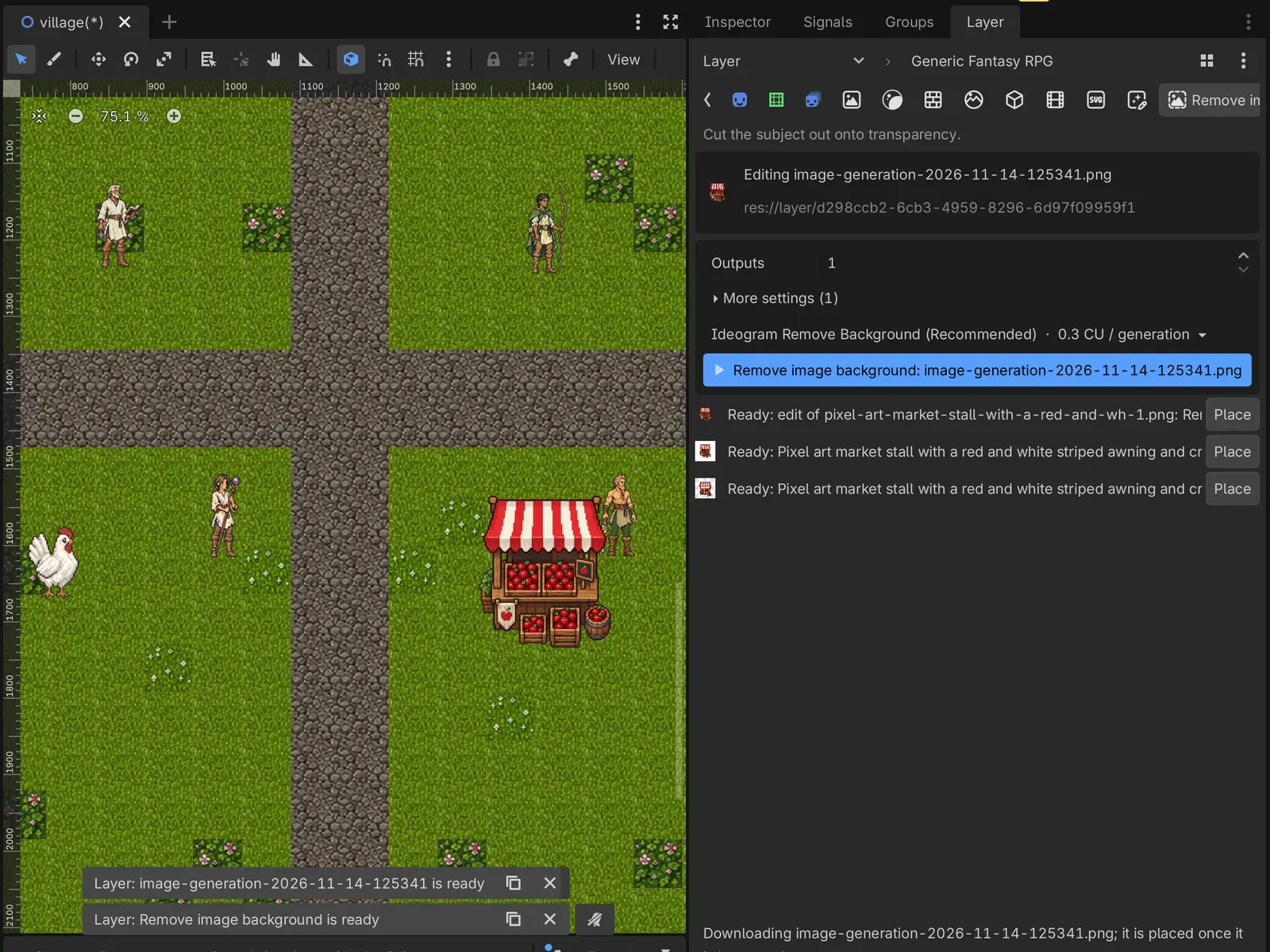
Edit an image
Section titled “Edit an image”Select a PNG, JPEG or WebP in the FileSystem dock, or a Sprite2D, Sprite3D, TextureRect or TextureButton that shows one, and pick an edit. When downloaded, an edited PNG, JPEG or WebP is saved beside the source with a versioned name such as <name>_edit_<date>_v<N>.png.
An edit of a node is placed over it: a copy of the node beside it, drawn on top and showing the result at the same size, with the original hidden. One undo step.
Sprite sheets
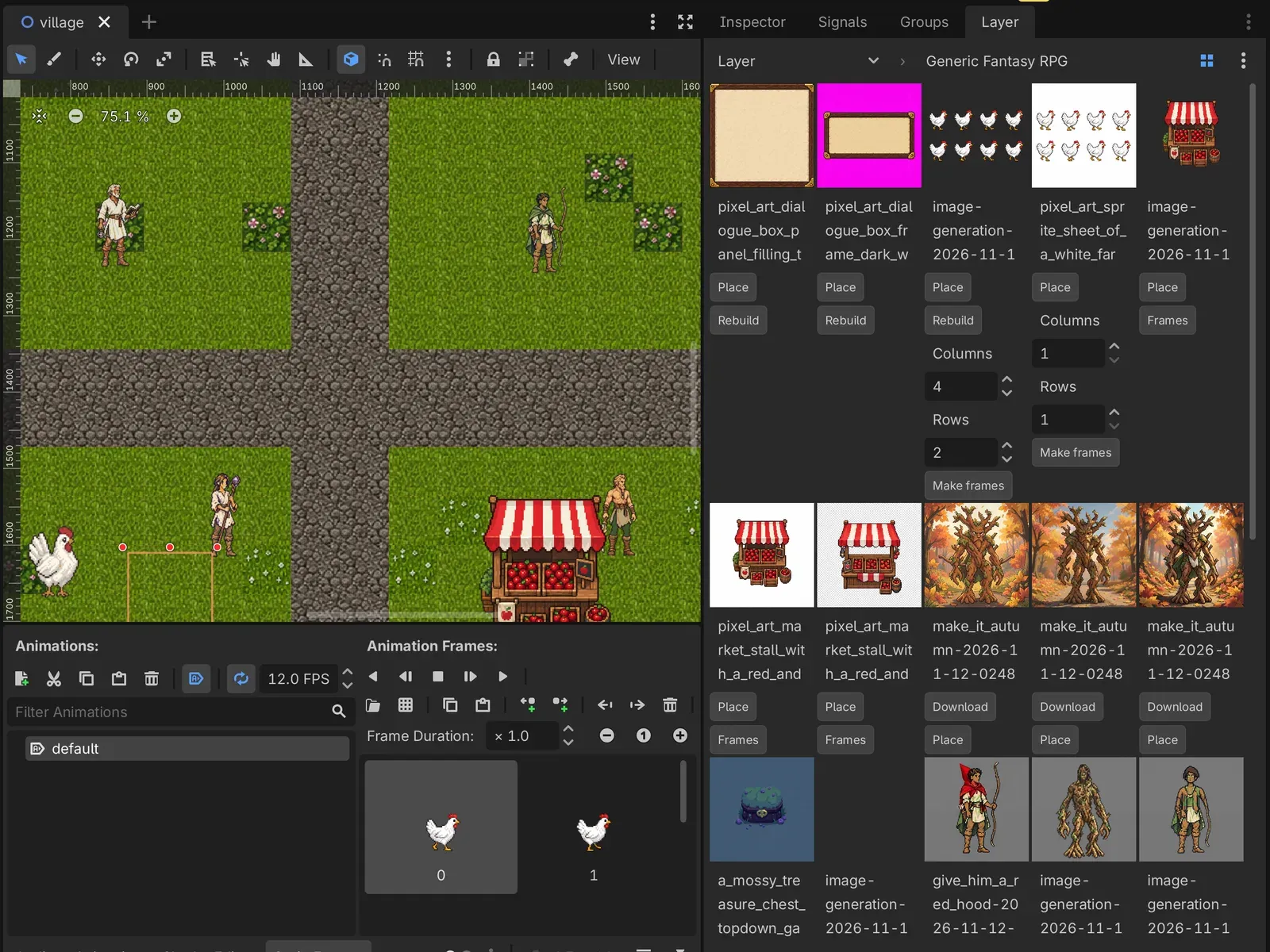
Section titled “Sprite sheets”Sprite sheet generates the frames of an animation in a grid. A sheet that arrives with its frames and animations, such as one the agent or the web app made, becomes a SpriteFrames beside the image. For a sheet without a grid, click Frames on it in the dock and give its columns and rows; the grid stays in this project and is never sent to Layer.
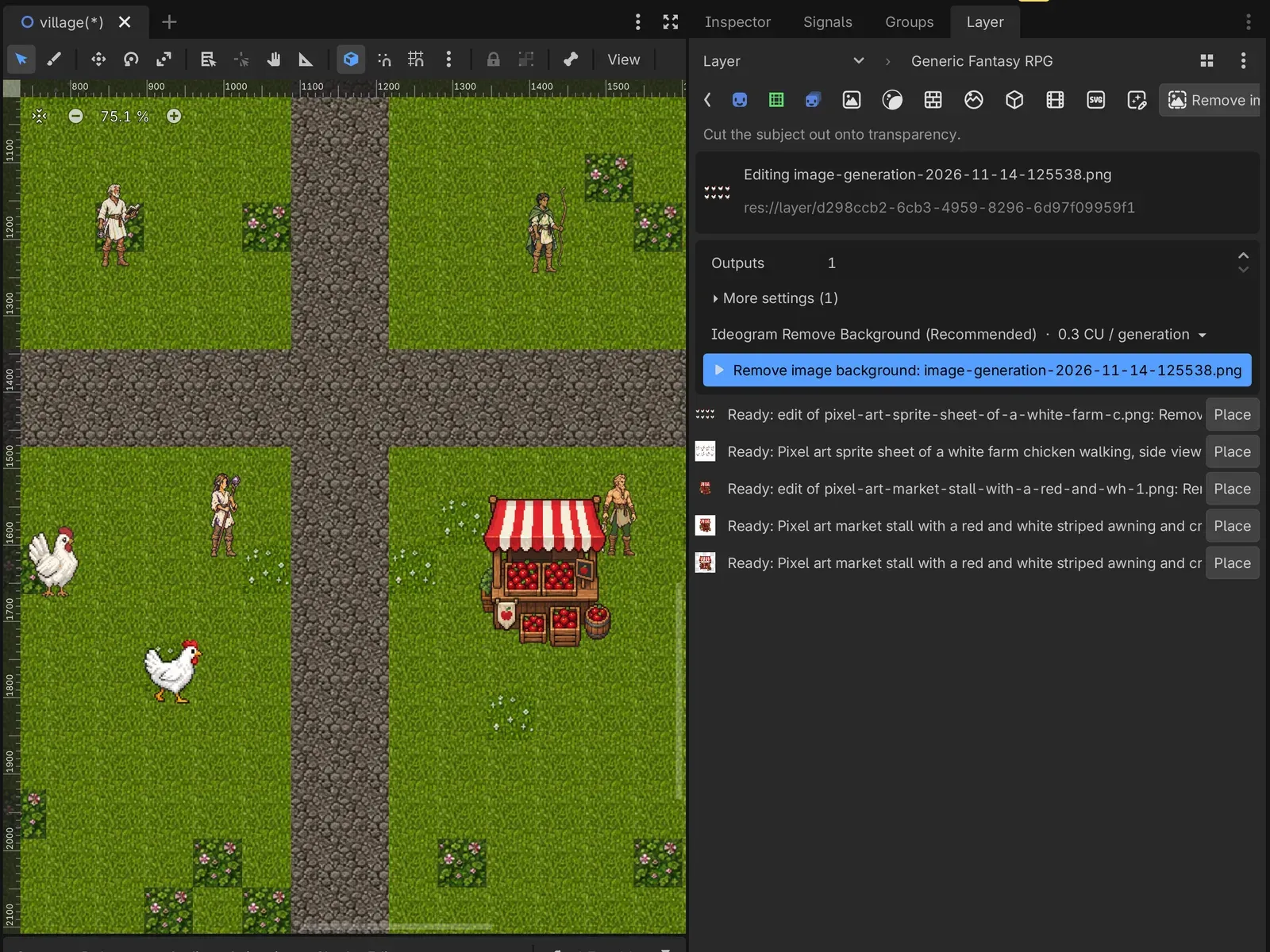
Place adds an AnimatedSprite2D playing its first animation.
9-slice UI elements
Section titled “9-slice UI elements”9-slice UI element generates a button, frame or panel that stretches. Layer finds its insets, the addon builds a StyleBoxTexture from them, and Place adds a NinePatchRect with them as its patch margins, so it stretches to any size without smearing its corners.
Game tiles
Section titled “Game tiles”Tiles made in Layer, by the agent or the web app, arrive with their grid. Each grid gets one TileSet in res://layer/<session id>/tilesets/, and Place paints a tile into the cell under the view center: into the selected TileMapLayer when it uses that grid, or into a new one with Y Sort on. A building is painted at its front cell.
Session files
Section titled “Session files”Browsing session files keeps previews in memory. Download saves a supported file in the project. Place downloads it first if needed.
- Place in a scene: PNG, JPEG, WebP and SVG as textures; GLB and OBJ as 3D models; MP3 and WAV as an
AudioStreamPlayer. A Layer PBR material bundle applies to selected meshes. - Download Ogg audio first: if Godot imports it as Vorbis, you can place it as an
AudioStreamPlayer. Other Ogg codecs, including Opus, stay in the project as files, like GIF and MP4. Use Show to reveal them. - Keep on Layer: unsupported formats such as PSD and FLAC remain in the session without a local copy.
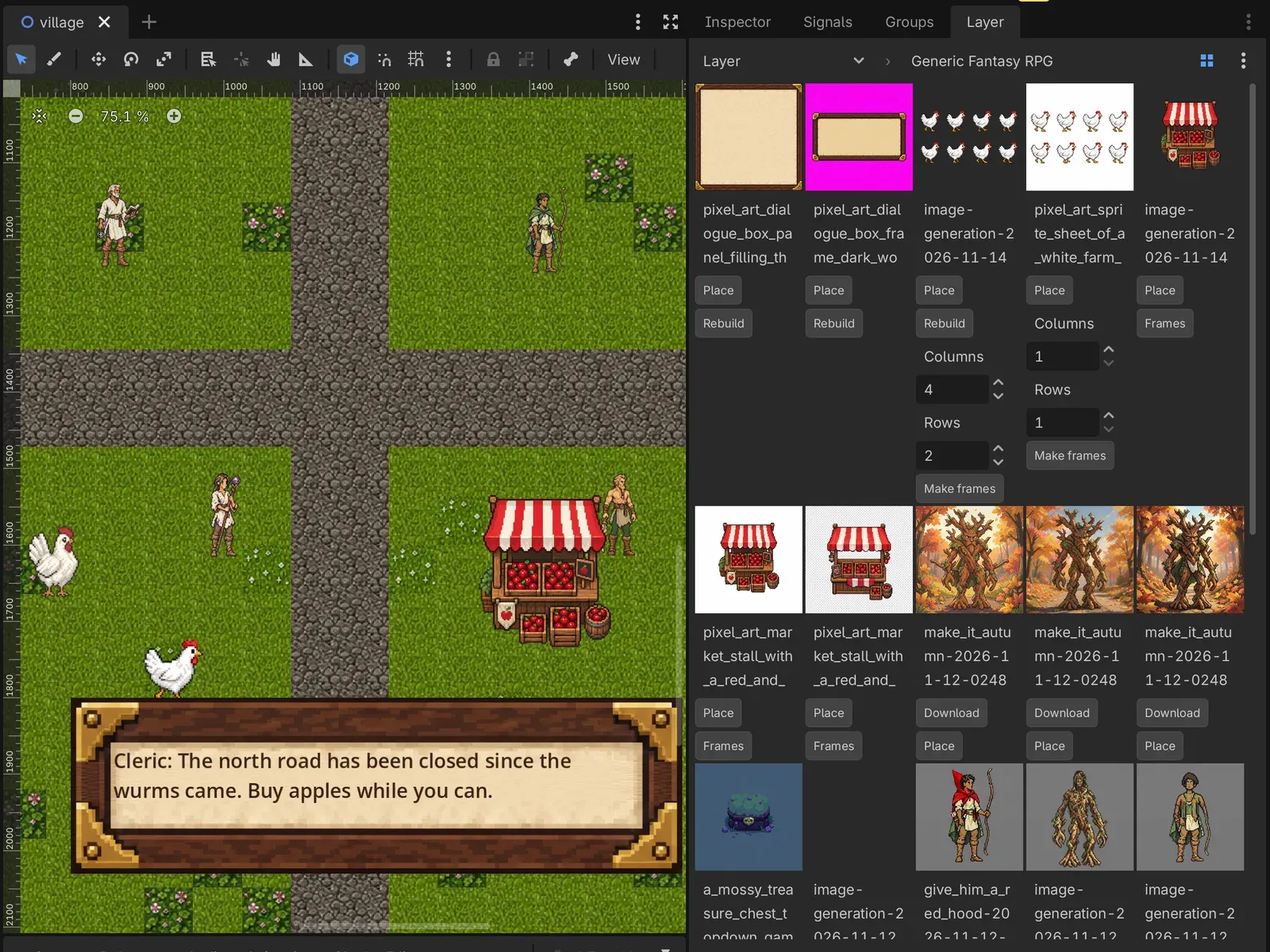
Turn on Download new files automatically to save new supported files as they arrive. The setting is per editor install, never in the project.
Rebuild builds a file’s TileSet, StyleBoxTexture or SpriteFrames again from the image and its metadata, keeping a tile’s source id so cells already painted with it stay painted.
What goes into the project
Section titled “What goes into the project”| Path | What | Commit it |
|---|---|---|
res://layer/session.json |
which Layer session the project uses | yes |
res://layer/<session id>/ |
supported files you downloaded or placed, except images saved beside their source | your choice |
res://layer/<session id>/index.json |
which Layer file each local file corresponds to | with the files |
<folder>/<name>_edit_<date>_v<N>.png |
an edit you downloaded, beside the image it edits | your choice |
*.layer.json |
file metadata, including tile, 9-slice or sprite sheet settings and any grid you gave an image (never the prompt) | with the files |
tilesets/*.tres, *.stylebox.tres, *.spriteframes.tres |
the TileSets, StyleBoxTextures and SpriteFrames built from them | with the images |
When a pull brings in a different session than the one you started, the dock shows both and asks which to keep. Files are never moved between sessions, and a file deleted on Layer is only marked deleted here; the local copy stays. The res://layer/ JSON files are left out of exported games; the images export as usual.
Keep one editor open per project: two editors on the same project each file the session on their own.